Specifications

LTI Diagnostics & Certification Guide
This LTI Diagnostic and Certification Guide defines the processes, tools, and resources used to evaluate, troubleshoot, and validate an implementation of LTI v1.3 and LTI Advantage. Its purpose is to help organizations understand how to verify conformance, diagnose common issues, and complete the certification workflow. By outlining the required steps, expected behaviors, and diagnostic methods, the guide supports consistent, accurate, and reliable certification of LTI integrations across Platforms and tools.
User Guide for 1EdTech’s LTI Diagnostics & Certification
Abstract
This LTI Diagnostic and Certification Guide defines the processes, tools, and resources used to evaluate, troubleshoot, and validate an implementation of LTI v1.3 and LTI Advantage. Its purpose is to help organizations understand how to verify conformance, diagnose common issues, and complete the certification workflow. By outlining the required steps, expected behaviors, and diagnostic methods, the guide supports consistent, accurate, and reliable certification of LTI integrations across Platforms and tools.
Introduction
LTI® Diagnostics & Certification can be used to validate and certify your implementation of LTI. It is a part of build.1edtech.org, 1EdTech’s developer resource portal.
The currently supported diagnostic and certification functionality for LTI Tools and Platforms are:
- LTI Core
- Deep Linking
- Names & Roles Provisioning Service
- Assignments & Grades Service
Over time, additional specifications will be added to the LTI Diagnostics & Certification testing suite.
Start Testing
Log in to BUILD.1EDTECH.ORG.
Find or create the product you are interested in validating/certifying.
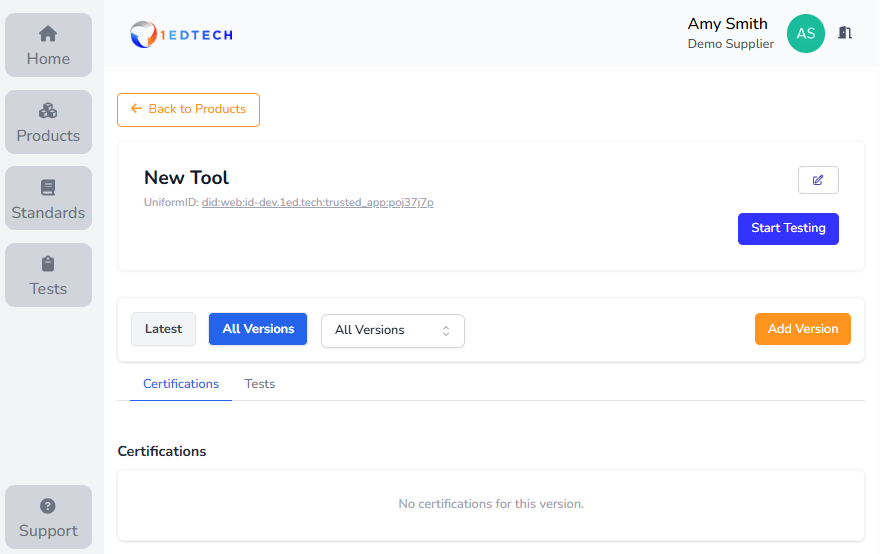
You can start the diagnostic and certification process by selecting the product you wish to test and clicking on the Start Testing button. For new products, you will need to add a version to initiate testing.
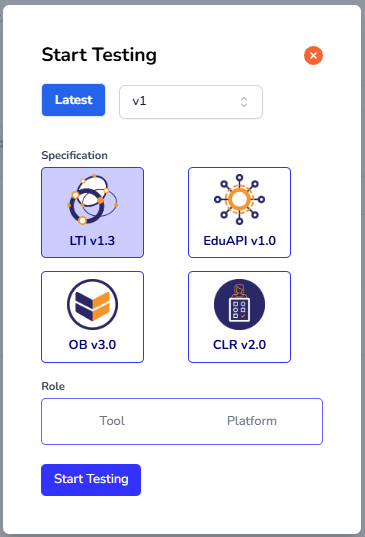
Selecting LTI Version and Role
Select LTI v1.3 and either Tool or Platform, based on what you are interested in validating.
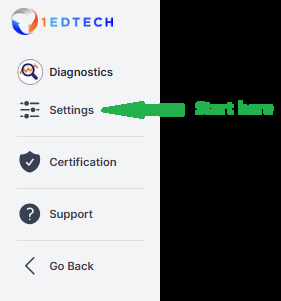
Upon starting the testing, you will see the following main menu options. These options are the same for both Tools and Platforms:
- Diagnostics – observations and details of the tests executed will be displayed here
- Settings – configuration details for the product should be entered here
- Certification – certification submissions are made here
- Support – access to support options can be found here
Testing a Tool
Settings
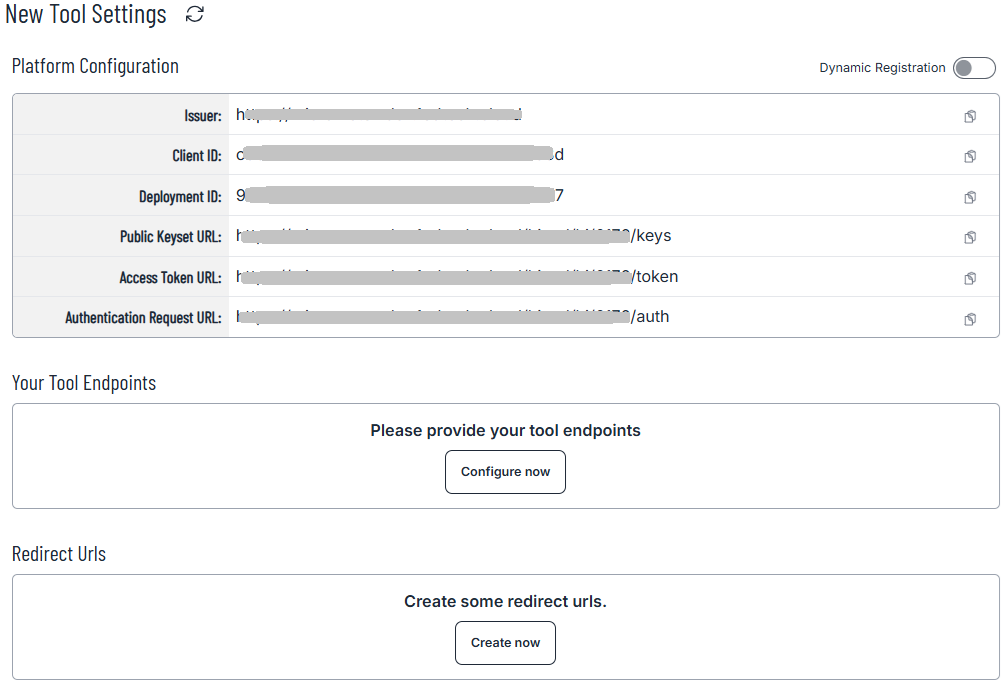
To test your Tool, start by registering your Tool in the LTI Diagnostics & Certification testing suite via the Settings menu. The testing suite will act as a platform from which to launch your Tool.
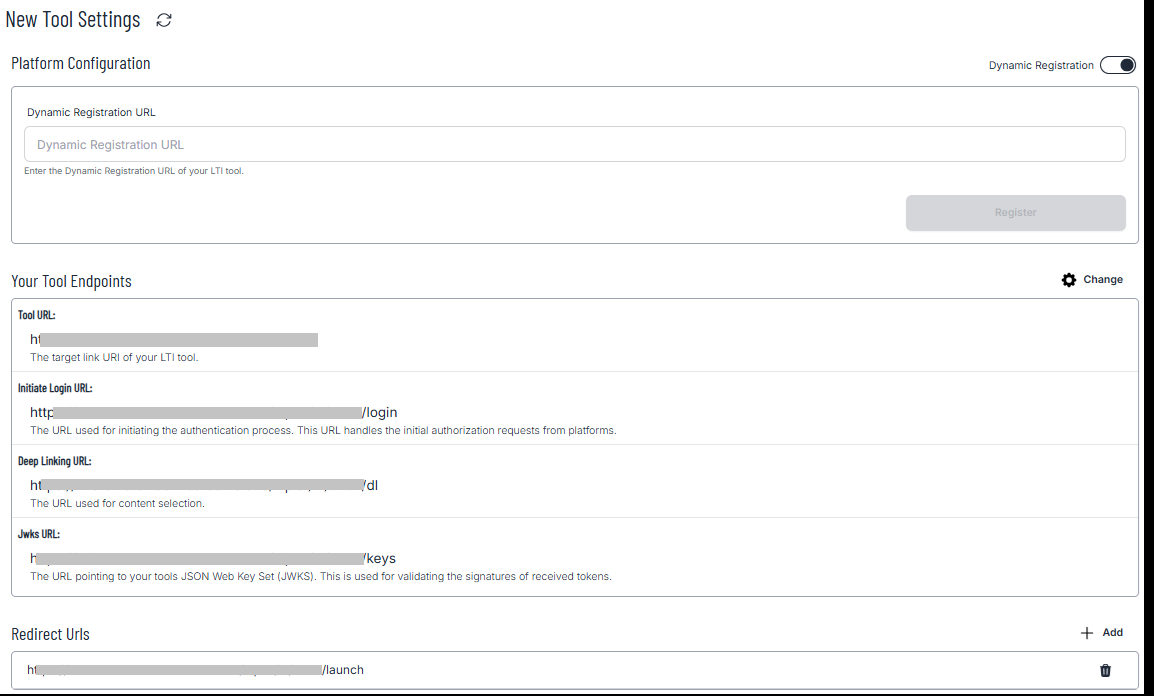
Dynamic Registration
If your Tool supports Dynamic Registration, you can enter your Tool’s Dynamic Registration URL and click on Register to complete the registration process.
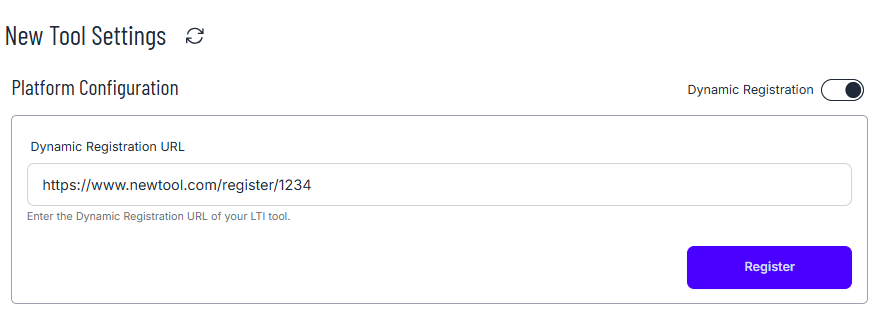
Your Tool’s configuration will automatically be populated in the settings.
Manual Registration
Toggle off Dynamic Registration to expose the LTI Diagnostics & Certification platform configuration details and manually enter your Tool’s configuration.
Diagnostics
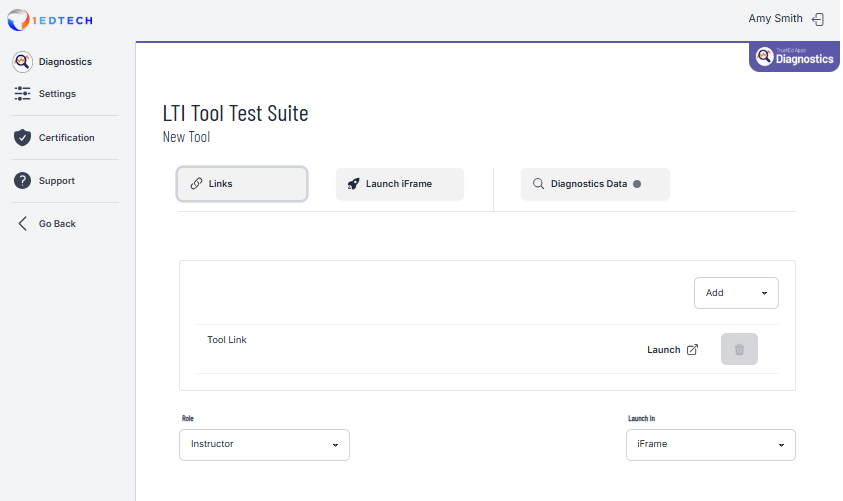
Tool Diagnostics are made up of three tabs:
- Links
- Launch iFrame
- Diagnostics Data
Links
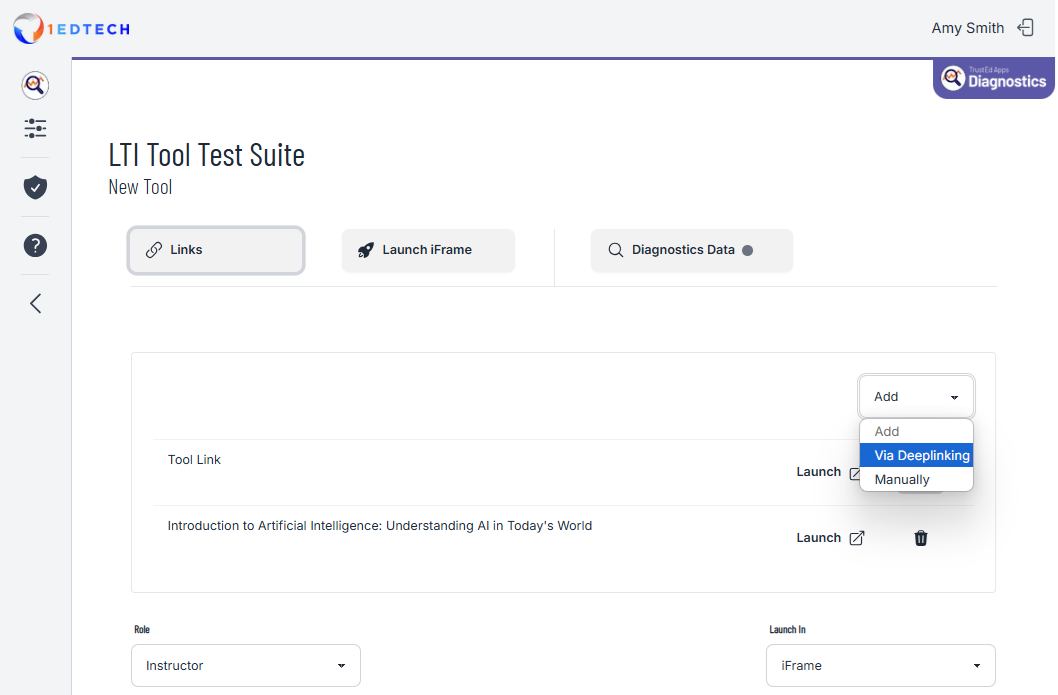
Once registered, a basic LTI launch link for your Tool will be created. You can add additional links manually or via Deep Linking using the Add menu. Once added, they will appear in the Links list, from which they can be launched. You can choose the user Role for the launch, as well as whether to launch in an iFrame or a Window.
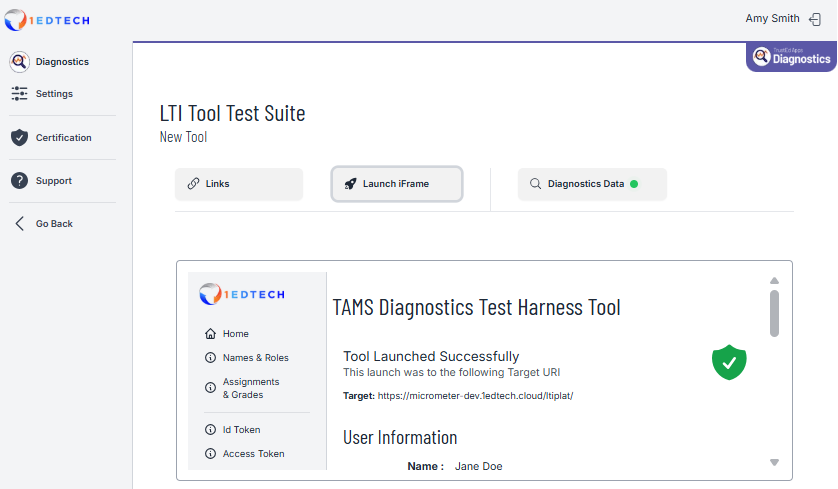
Launch iFrame
If you select iFrame for the launch, your Tool will appear in the Launch iFrame tab.
Diagnostics Data
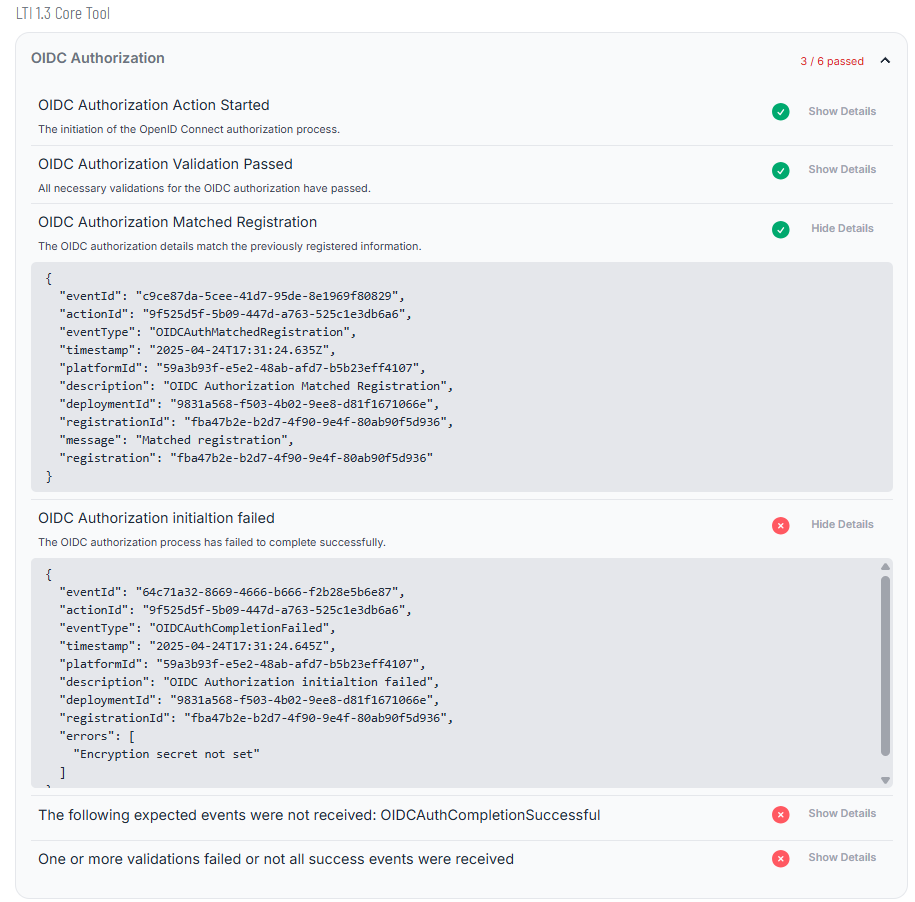
On the Diagnostics Data tab, you will see the observations and details that the LTI Diagnostics & Certification testing suite is recording and validating as your Tool interacts with it.
- A green check mark indicates that the action was successful.
- A red X identifies an action that was not successful.
Each test includes a drop-down with additional details on the test results.
Testing a Platform
Settings
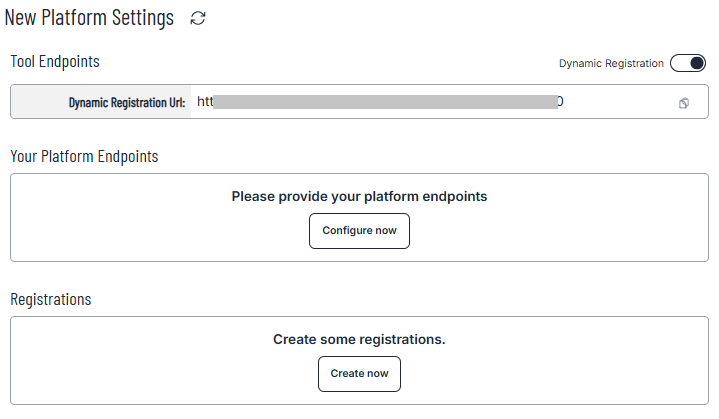
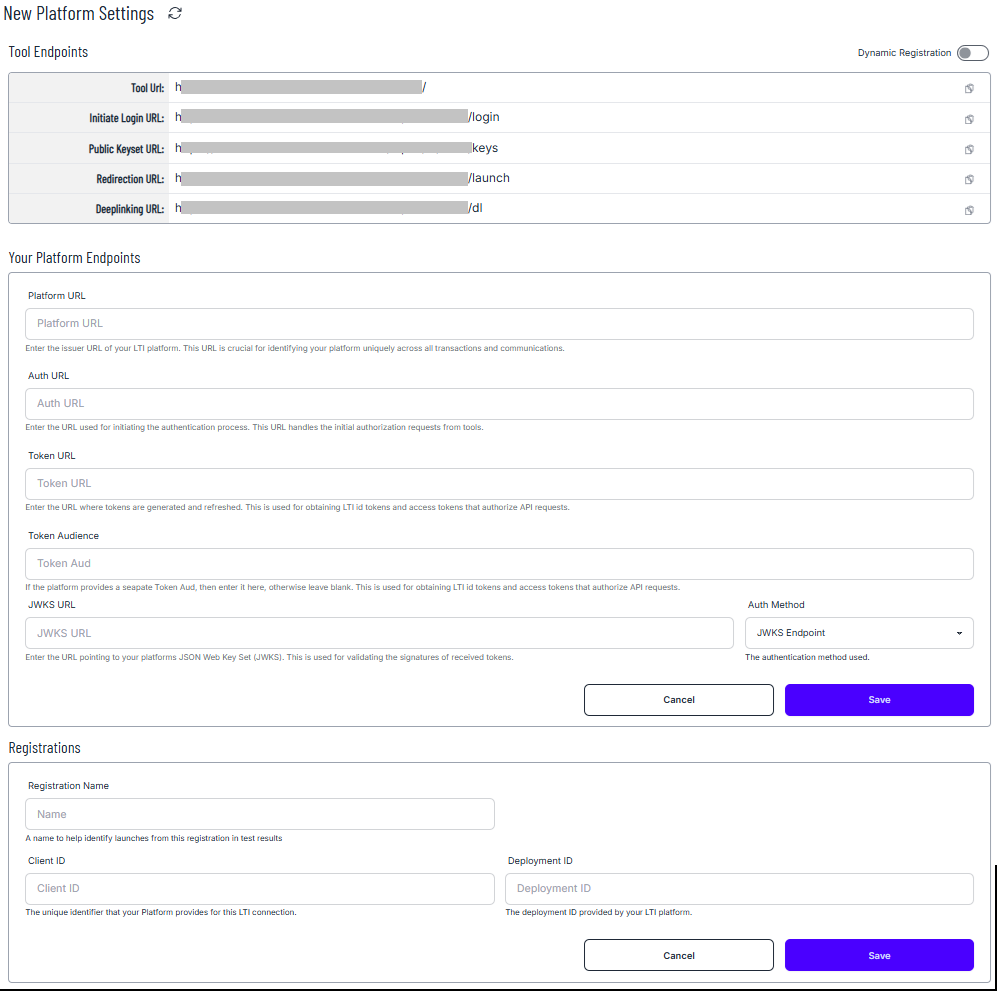
To test your Platform, start by registering the LTI Diagnostics & Certification testing suite. The testing suite acts as a Tool that your Platform can launch. The details of the testing suite are available via the Settings menu.
Dynamic Registration
If your Platform supports Dynamic Registration, you can enter the testing suite’s Dynamic Registration URL into your Platform.
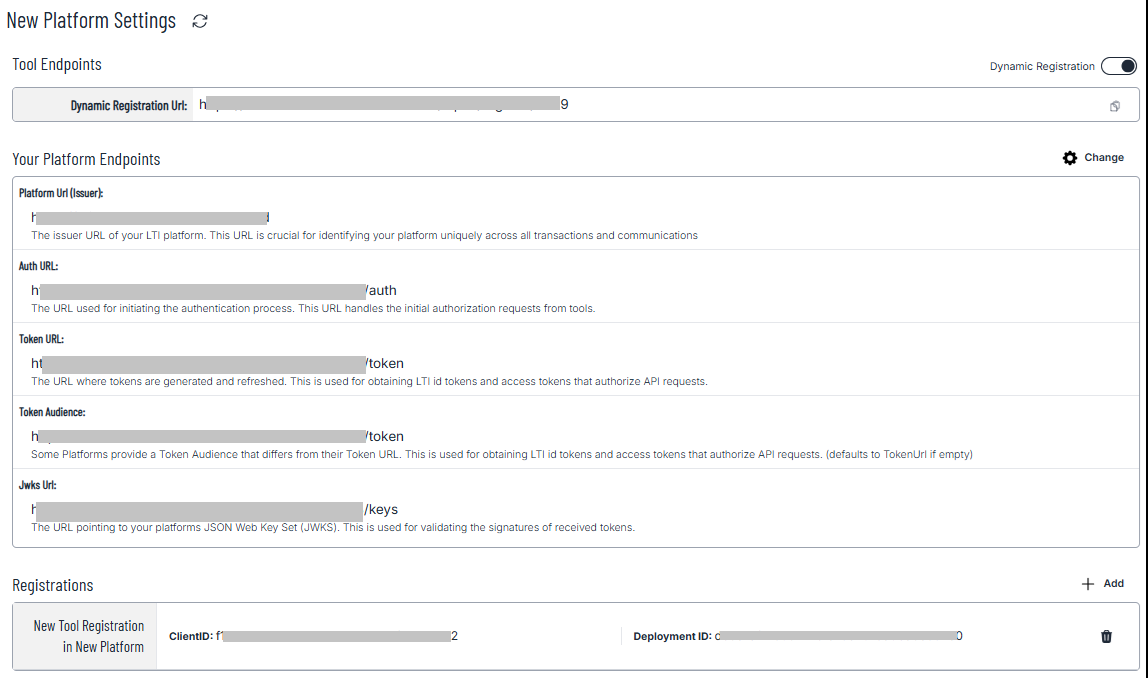
When the registration in your Platform is complete, you can refresh the testing suite’s Settings page to see the configuration details.
Manual Registration
Toggle off Dynamic Registration to expose the LTI Diagnostics & Certification Tool configuration details and manually enter your Platform’s configuration.
Diagnostics (Platform)
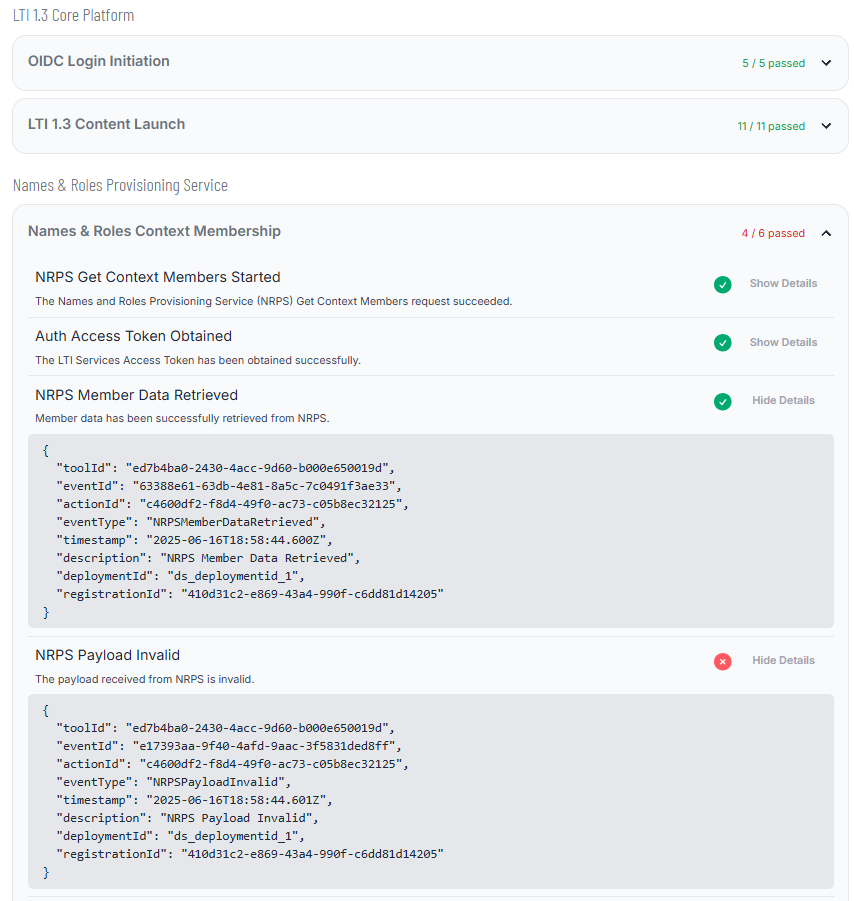
On the Diagnostics page, you will see the observations and details that the LTI Diagnostics & Certification testing suite is recording and validating as your Platform interacts with it. The process is started by launching the testing suite Tool within your Platform.
- A green check mark indicates that the action was successful.
- A red X identifies an action that was not successful.
Each test includes a drop-down with additional details on the test results.
Certification
Once you have completed diagnostic test sessions that meet LTI specification requirements (green diagnostics indicators), you can submit those sessions for certification.
Start by clicking on the Certification navigation link. You will then proceed with selecting the certification you are requesting for your product in the drop-down menu. Once selected, choose the supporting diagnostic test session(s) until all certification criteria are met. Once all criteria have been met, select Review.
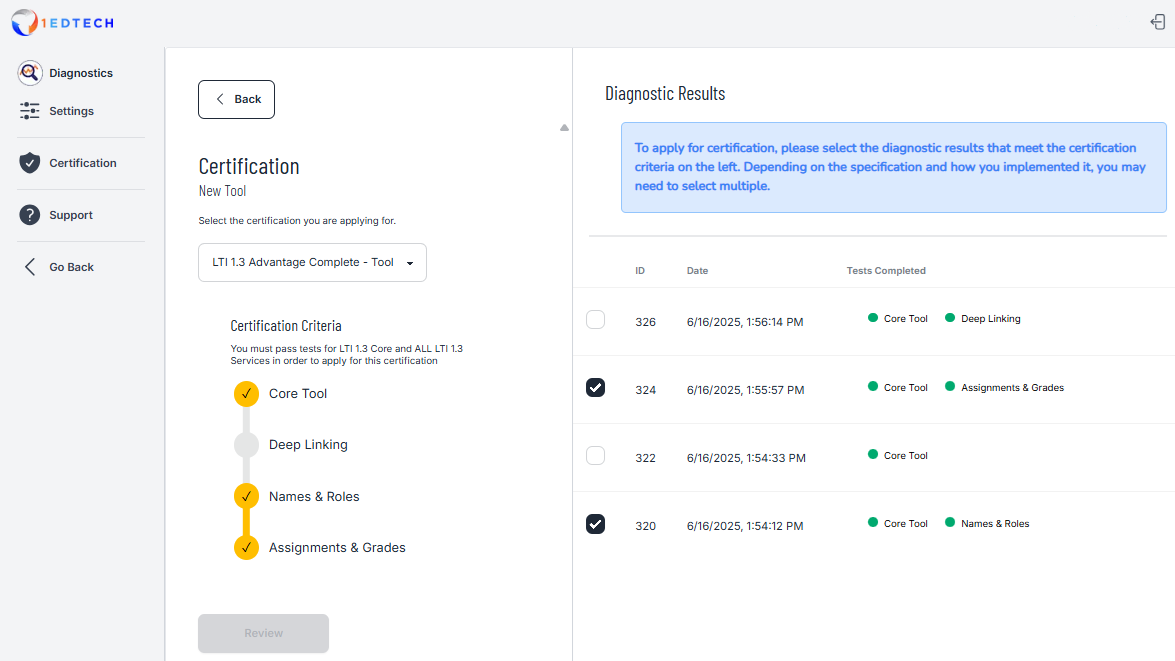 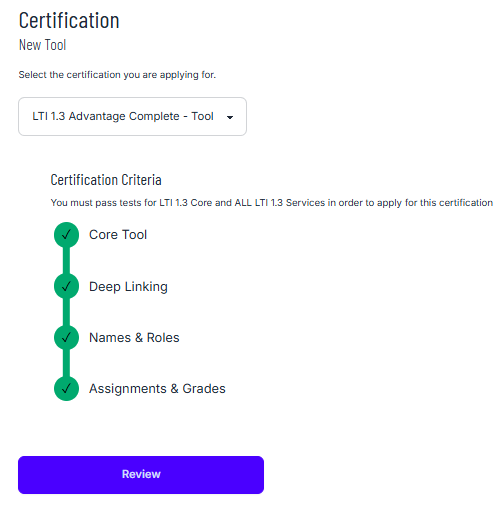
After reviewing the submission details and certifying that the diagnostic data gathered was for the selected product, you can apply for certification.
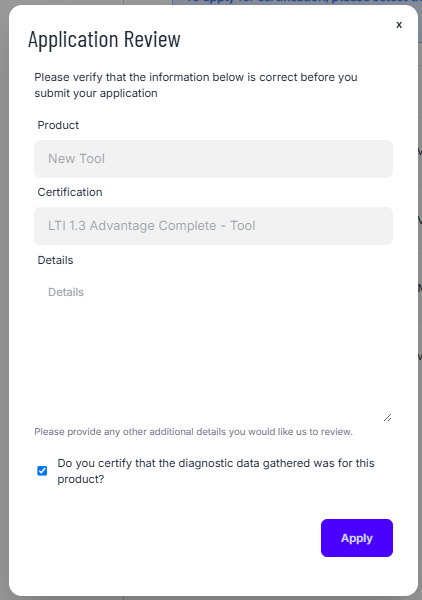
After you click on Apply, there will be a slight delay until you receive a submitted response from the system.
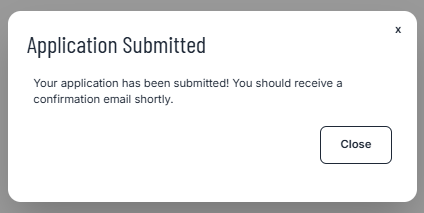
A certification case will be sent to our support team, and you will receive an automated response confirming receipt. The support team will manually validate your application and contact you regarding the granting of your certification.
IP Disclosures
IP disclosures are not listed yet.
List of Contributors
Contributors are not listed yet.
Changelog
Changelog entries are not listed yet.